How to check if a link is safe or not: Verify link safety & protect yourself online!

 20 minutes
Every day, we click dozens of links without thinking twice, from emails and social media posts to online shopping deals and messages from unknown senders.
But what if one simple click could expose your personal data, banking details, or even your entire device? The risk is very real!
In fact, cybersecurity reports show that nearly 893 million phishing attempts were blocked globally in 2024, highlighting how common malicious links have become.
Even more alarming, phishing emails account for over 90% of successful cyberattacks, proving how easily unsafe links can trick users.
That aligns with recent reporting that found 2,365 cyberattacks and over 343 million victims in 2023 alone, driven largely by increasingly sophisticated phishing and malware-delivery methods.
With scams becoming smarter and harder to detect, learning how to verify link safety is no longer optional (it’s essential).
Before we step into how to check suspicious URLs, let’s first understand the basics, starting with what a safe link actually means.
What is a safe link?
A “safe link” is a trustworthy web address that leads you to a legitimate and secure website without exposing your device or personal information to harm. In simple terms, it’s a link that takes you exactly where it claims to go (nothing hidden, nothing risky).
Most safe URLs belong to verified organizations or websites, use proper security measures like HTTPS encryption, and don’t contain malware, phishing scripts, or suspicious redirects.
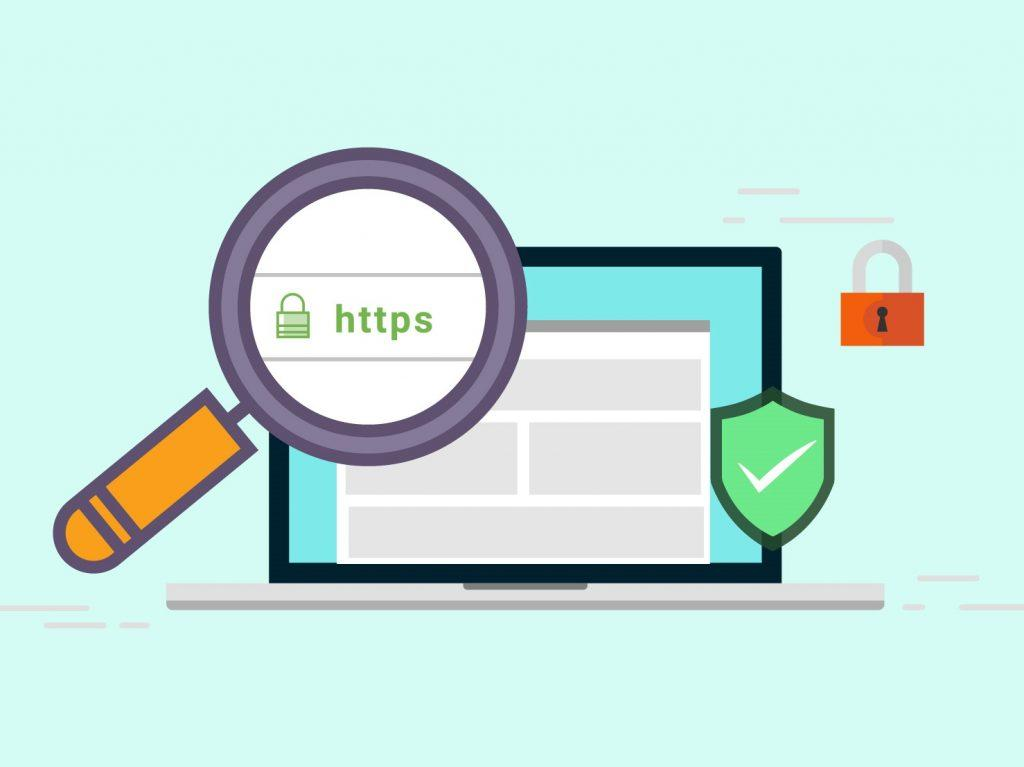
When you click a safe link or URL, your connection is encrypted, which helps protect sensitive information such as login credentials or payment details.
Safe links are designed to ensure users can browse, share files, or access resources securely, including legitimate password-protected links that restrict access to authorized users only.
Overall, the main objective of a safe link is to provide a secure browsing experience while protecting users from scams, data theft, and cyber threats.
Importance of checking link safety
Here’s why it’s so essential:
- Protects your personal & financial data: Unsafe links often redirect users to fake websites that steal login credentials, banking details, or personal information through phishing scams.
- Prevents malware infections: Malicious URLs can automatically install harmful software like ransomware, keyloggers, or spyware, which can compromise your device and data.
- Helps verify genuine URLs: Checking URLs ensures you’re visiting the correct website and not a spoofed or look-alike domain, which is specifically designed to trick users.
- Keeps password-protected links secure: Verifying password-protected links helps confirm they come from trusted sources and aren’t fake portals created to capture your passwords.
- Reduces the risk of identity theft: Cybercriminals often use unsafe links to collect personal details that can later be misused for fraud or unauthorized access.
- Prevents accidental data sharing: Safe link checks help users avoid uploading files or information to harmful or fake platforms.
- Strengthens overall online security habits: Regularly verifying links helps build safer browsing habits and reduces the risk of falling for modern URL-based phishing and scam tactics.
How to check if a link is safe to click
Before clicking any link, it’s always smart to pause for a few seconds and verify where it actually leads.
Cybercriminals often hide malicious content behind convincing links, but the good news is you don’t need to be a tech expert to spot most risks.
A few simple checks can help you avoid phishing scams, malware downloads, and fake websites.
Here’s how to check if a link is safe before clicking it:
Hover before clicking
Place your mouse over the link without clicking it. Most browsers will show the real destination URL in the bottom corner of the screen.
If the displayed address looks unfamiliar, misspelled, or unrelated to what the link claims, it’s best to avoid clicking. Keep in mind that hovering isn’t 100% foolproof, so combine it with other checks for better safety.
Use URL checkers
Online link scanners such as VirusTotal, Google Safe Browsing, and similar tools let you paste a suspicious link and scan it for malware, phishing, or other known threats.
These tools analyze the destination and alert you if the website has been flagged as dangerous, providing an extra layer of protection.
Inspect the URL structure
Take a close look at the link itself. Scam links often contain small spelling errors, extra characters, or strange domain extensions that mimic legitimate websites.
For example, attackers may replace letters with numbers or add extra words to trick users. Carefully reviewing the structure of a URL can help you catch these warning signs early.
Check for HTTPS
Safe websites usually start with “https://” and display a padlock icon in the address bar. The “S” means the connection is encrypted, which helps protect your data while browsing.
While HTTPS alone doesn’t guarantee a site is completely safe, its absence is often a red flag, especially if the website asks for sensitive information.
Analyze the source
Always think about where the link is coming from. If you receive a link from an unknown sender, an unexpected email, or a message that creates urgency or fear, it could be a phishing attempt. When in doubt, always verify the sender through another trusted channel before clicking the link.
Check shortened links
Shortened links hide the full destination, making it easier for scammers to disguise harmful websites. You can preview or expand such links using special tools or preview options provided by some shortening services. This helps reveal where the link actually leads before you open it.
How to check if a link is safe to open
Sometimes, you may want to verify a link without actually visiting the website, especially if it looks suspicious.
The good news is that there are several simple tools and methods that let you analyze links safely in the background.
These options help you spot phishing attempts, malware risks, and fake websites without putting your device or data at risk.
Here’s how to check if a link is safe without opening it:
Use online URL scanners
Online URL scanners allow you to copy and paste a link into a safety tool instead of opening it directly.
These tools check the link against large threat databases and scan it for malware, phishing activity, fake websites, or scams. Many scanners provide results within seconds, helping you decide whether a link is safe before visiting it.
This is one of the easiest and most reliable ways to check suspicious links without exposing your device to risk.
Use link shortener expanders
Link shortener expanders reveal the real destination behind shortened links. Cybercriminals often use shortened URLs to hide malicious websites, phishing pages, or malware downloads.
Expander tools show the full URL, analyze redirect chains, and sometimes check the final destination against threat databases.
This transparency helps you confirm if the link leads to a legitimate site or a suspicious one before you click.
Use security extensions
Browser security extensions act like a built-in safety guard while you browse. These tools analyze links in real time and warn you if they detect phishing attempts, malware, or unsafe websites.
Some extensions also allow you to scan links manually or preview shortened links before opening them.
While they add an extra layer of protection, it’s still important to install extensions only from trusted sources and keep them up to date for the best security.
How to check if a link is safe on iPhone
iPhones already come with strong security features, but that doesn’t mean every link you see is safe. Scammers still use phishing messages, fake websites, and misleading links to trick users into sharing personal information.
The good news is that your iPhone offers several simple ways to verify links before you open them.
Let’s go through some easy checks you can use to stay safe!
Preview the URL
You can preview a link without opening it by long-pressing it in Safari or many other apps. This shows a preview window or lets you view the full URL so you can check where the link actually leads.
If the address looks strange, misspelled, or unrelated to what the link claims, it’s safer to avoid it.
Apple confirms that touching and holding a link lets users preview the page without opening it.
Use Safari’s built-in protection
Safari includes a feature called Fraudulent Website Warning that alerts you when you try to visit a suspected phishing or scam website.
It checks website addresses against trusted safe-browsing databases and displays warnings before you interact with dangerous pages.
This helps protect personal information such as passwords, login credentials, and financial data from fake websites.
Inspect for HTTPS (padlock icon)
Always check for the padlock icon and “https://” at the beginning of the website address. This shows that the connection is encrypted, helping protect your data while browsing.
While HTTPS doesn’t guarantee a site is completely safe, legitimate websites that handle sensitive information almost always use it, making it an important first step in assessing safety.
Scan with online tools
If a link looks suspicious, copy and paste it into a trusted URL-scanning tool or app instead of opening it directly. These tools analyze links for phishing attempts, malware risks, domain history, and redirect chains.
Some scanners even provide a screenshot of the destination page, allowing you to check the content without visiting the site.
Review the link structure
Take a moment to carefully read the link. Fraudulent links often include small spelling mistakes, unusual characters, or strange domain endings designed to look like real websites.
If the link claims to belong to a trusted company but the web address looks slightly different, that’s usually a warning sign.
How to check if a link is safe on Android
Android phones already include several built-in security features, but scammers still try to trick users through fake or harmful links.
No matter if you receive a link via SMS, email, social media, or an app, it’s always smart to verify it before opening it.
Thankfully, Android (especially when using Chrome) offers a few easy ways to check link safety without needing technical knowledge.
Check browser security (Chrome)
Google Chrome on Android uses Safe Browsing technology that warns users before they visit dangerous websites or download harmful files.
It performs real-time checks against databases of phishing and malware websites and can even detect new or previously unknown threats.
Enabling Chrome’s enhanced protection mode can further strengthen security by using advanced AI to detect scam URLs and suspicious downloads.
Long-press preview
You can long-press a link in Chrome to have a look at the preview options before fully opening it.
This feature lets you quickly check where the link leads and, in some cases, view part of the webpage without loading it in a new tab.
It’s a simple way to confirm whether the link looks trustworthy or suspicious before clicking.
Use built-in protections
Android includes several background security layers, such as Google Play Protect, which scans apps and helps block harmful software.
Chrome also receives regular security updates and AI-based protections that detect deceptive websites and suspicious content while you browse.
These built-in tools continuously work to keep your device, apps, and data safe.
Avoid shortened links
Shortened links make it easier for scammers to disguise harmful websites. If you receive one, it’s safer to expand or verify it using a preview tool or link scanner before opening it.
Taking a few extra seconds to check shortened links can prevent phishing attacks and malware downloads.
How to check if a link is safe on Discord
Discord is a fun place to chat, join communities, and play games, but like any online platform, it can also be targeted by scammers.
Malicious links on Discord often appear in direct messages, server chats, or bot messages and may look completely legit at first glance. The key is knowing what warning signs to look for before clicking anything.
Here are some simple ways to check if a Discord link is safe or not!
Check for misspellings (typosquatting)
Scammers often create fake links that look almost identical to real Discord domains. For instance, they might replace letters or slightly change the spelling to trick users into thinking the link is legitimate.
Discord safety resources highlight that fake links often rely on small spelling mistakes or altered domain names to mislead users. If a link looks even slightly off, it’s best to avoid it!
Use third-party link scanners
If you’re unsure about a link, copy it and scan it with trusted link-checking tools before opening it directly.
Discord recommends checking suspicious links with security tools, such as malware scanners, to see if they have been flagged as dangerous. These scanners can detect phishing pages, malware downloads, and other hidden threats that would otherwise go unseen.
Identify fake domains
Always verify whether the link is from an official Discord domain, such as discord.com. Fake websites often copy Discord’s design and try to trick users into entering login details or downloading harmful files.
Security guidance warns that suspicious DMs or links requesting passwords, login credentials, or personal information are major red flags and should be sidestepped.
Check for “free nitro” scams
Fake Nitro giveaways are one of the most common Discord scams in 2026.
Discord warns that random messages promising free Nitro, rewards, or giveaways are usually scams, especially if they ask you to click a link, scan a QR code, or enter your login details.
Legitimate Nitro gifts typically stay within Discord’s official system and don’t require suspicious external links.
How to check if a link is safe on Reddit
Reddit is a great place to discover content, but not every shared link is trustworthy. Since users can post external links freely, it’s important to take a few quick safety checks before clicking on anything unfamiliar.
The good news is that you don’t need to be a cybersecurity expert. A few simple habits can help you avoid risky or malicious links.
Use external link scanners (before clicking)
Paste the Reddit link into trusted link-checking tools or similar scanners to see if the URL is flagged as unsafe or suspicious. If the scanner shows warnings or suspicious activity, it’s best to avoid clicking the link altogether.
External scanners are helpful because malicious URLs can lead to phishing attacks, malware downloads, or the theft of personal information.
Analyze the link within Reddit
Hover over the link (on desktop) to preview the full URL before clicking. If the address looks strange, overly long, or slightly misspelled (like fake domain names), it could be risky.
Also, check whether the link uses HTTPS (secure protocol). While not a guarantee of safety, HTTPS is generally safer than simple HTTP.
Besides, be cautious with shortened links. Since they hide the final destination, scan or expand them before opening.
Evaluate the context & community
Read the comments under the post. Other Reddit users often quickly point out suspicious or misleading links.
Likewise, look at the subreddit where the link is posted. Well-moderated, reputable communities usually remove harmful or spam content faster.
You must also check the poster’s profile. Accounts with no history, very recent creation dates, or spam-like posting patterns can be warning signs.
Use built-in security
Reddit uses automated systems and moderation tools to detect spam, harmful content, and unsafe links across the platform.
Pay attention to Reddit warnings or posts that have been removed. They often signal potential security risks.
Enable two-factor authentication (2FA) to keep your Reddit account secure, and it helps protect you even if you accidentally interact with suspicious content.
Avoid suspicious content
Stay away from links that promise unrealistic rewards, giveaways, or urgent offers. These are common phishing tactics.
Additionally, avoid downloading files or software from unknown Reddit links, as they may contain malware. If something feels off or too good to be true, trust your instinct and skip it.
How to check if a link is safe to download
Before downloading anything from the internet, it’s smart to pause and double-check the link. Unsafe download links can lead to malware, phishing attempts, or fake files that compromise your device or personal data.
The good news?
A few simple checks can help you avoid most risks and download files with confidence.
- Start by downloading files only from trusted or official websites, since scammers often create fake pages that look almost real.
- Use reliable URL scanners to analyze the download link before clicking. These tools scan links across multiple security databases to detect malware or phishing threats.
- Also, check if the website uses HTTPS encryption and look for unusual domain names or spelling mistakes, which can signal fake sites.
- If possible, scan downloaded files with antivirus software or verify their file hashes or signatures to confirm they haven’t been tampered with.
These quick habits significantly reduce your chances of downloading harmful content.
How to check if a link is safe in an email
Before clicking any link in an email, take a moment to double-verify it.
- First, hover your mouse over the link (or long-press it on mobile) to see the actual URL. If the address looks strange or doesn’t match the company’s official website, it’s best to avoid it.
- Also, check the sender’s email address carefully. Scammers often use addresses that look similar to real ones but have small changes.
- Be cautious with shortened links or emails that create urgency, such as asking you to “act now” or to share personal details.
- If you’re unsure, don’t click the link. Instead, visit the company’s website directly by entering the address in your browser, or contact their support team.
Taking these quick steps can help you stay safe from phishing and malicious links.
What does a link checker do & why should you choose one?
Keeping your website’s links healthy and working is one of those behind-the-scenes jobs that make your site feel professional and trustworthy.
A “link checker” is the tool that does this work for you. It scans every link on your site to make sure nothing’s broken, missing, or sending visitors astray.
Here’s a friendly, step-by-step explanation of how a link checker works:
1. You enter your website’s URL: Just type in the main domain or a specific page URL into the tool. This tells the link checker where to start.
2. It crawls your site like a search engine would: The tool goes through every page it can find, just like a crawler or bot, and pulls out every hyperlink you’ve got (both internal and external).
3. It grabs all the links it finds: It looks at every linked item (navigation links, buttons, images, PDFs, and more) and organizes them.
4. It tests link responses: Each link is checked by asking the destination server for a response. If the server says “200 OK,” that’s good. But if it returns an error (such as a 404 “Not Found” or another code), the link is flagged as broken. These status codes tell you what’s happening behind the scenes.
5. It groups & reports the results: Once scanning is done, the tool presents a report showing which links are fine and which aren’t, often with extra details such as internal vs. external, dofollow vs. nofollow, and error types.
6. You fix what’s broken: Armed with the report, you can update, redirect, or remove bad links to keep your site smooth and error-free.
💡 In a nutshell: A link checker simplifies what would otherwise be a painfully slow manual task. It automates the process of scanning links, testing them, and showing you exactly what needs fixing, all in a few minutes.
Manual link checking vs Automated link checking
When you’re trying to keep your site in good shape and SEO-friendly, you might wonder whether to check links yourself or let a tool do it. Both methods have their place, and knowing how they compare helps you pick the right approach for your needs.
Here’s a clear comparison that breaks down the key differences between manual link checking and automated link checking in a friendly, easy-to-digest table:
| Aspect | Manual link checking | Automated link checking |
| How it works | You click each link and review it to see if it works and makes sense. | A tool crawls your site and automatically tests links. |
| Accuracy / Quality | Very accurate since a human can spot subtle problems and context issues. | Good for basic errors, but can miss nuances or flag things incorrectly. |
| Speed | Pretty slow, as checking many links page by page takes time. | Quite fast, since tools can check thousands of links in minutes. |
| Human error risk | Higher risk of mistakes if you get tired or skip links by accident. | Lower risk, since tools run consistently without fatigue. |
| Scalability | Hard to scale; Great for small sites but tough for large ones. | Easily scales to large sites with many pages and links. |
| Context & judgment | Excellent — you can judge if a link is appropriate and meaningful. | Limited — tools test status but can’t fully judge relevance. |
| Cost | Free if you do it yourself, but time is the main cost. | May require paid tools, but saves time overall. |
| Best use case | Small sites, deep quality checks, or when accuracy matters most. | Big sites, frequent checks, or when you want fast reports. |
Most website owners or SEO pros use a mix of both: automated tools to catch obvious errors quickly, and a bit of manual checking when you want to double-check quality or context.
Wrapping up
In the end, staying on top of:
- What a safe link is,
- How to check links across devices and platforms, and
- Learning the key differences between manual and automated link checking
gives you a complete picture of how to keep your online presence healthy and trustworthy.
No matter if you’re scanning email links or scanning thousands of URLs on a site, a good streamlined process can save you time and frustration.
An all-in-one link management platform like Replug makes this even easier by letting you shorten, organize, secure, and track all your URLs from one place.


With features like branded links, analytics, and an efficient custom link generator that turns messy long URLs into clean, click-friendly ones, Replug helps you keep everything neat and professional.
This gives you peace of mind knowing your links are working for you, not against you. Try it today!
Frequently asked questions
How can I tell if a link is safe?
You can’t always judge a link just by looking at it, but a few signs help.
– Hover over it to see the real address,
– Check that the domain name looks normal and is spelled correctly, and
– Look for a secure connection (https:// with a padlock).
For real confirmation, use a URL safety checker before clicking. These tools effectively scan for malware, phishing, and scams.
How to know if a link has a virus?
A link itself doesn’t contain a virus, but it can lead to a page that delivers malware. You can check a link before clicking by copying it into an online scanner to see if it’s associated with malware or dangerous sites.
If you accidentally click and your browser warns you or your antivirus flags a download, close it and run a scan on your device.
How can I tell if a link is legit or a scam?
Look at the sender and context. Unexpected urgent requests or offers are red flags. Inspect the link for misspellings, odd characters, or strange domain names. Scammers often use tiny variations of real sites.
You can also run the link through a URL safety scanner to check reputation and known phishing reports before clicking.
What is a malicious URL, and what happens if you click on one?
A “malicious URL” is a web address designed to trick you into visiting a harmful site that can steal data, install malware, or steal money.
If you click on one, you might be redirected to fake login pages, get malware automatically downloaded (drive-by downloads), or be tricked into giving up personal info. This ultimately lead to account compromise or identity theft.
What’s the safest way to check if a URL is malicious or suspicious?
The safest way is to scan the link before clicking. Use trusted online tools or other URL scanners to check for malware, phishing, or blacklist status.
Don’t click first; just copy and paste the link into the tool, and check the result. Combined with common sense (hover to preview, watch for odd domains), this approach gives the best protection.
Does a URL/link checker identify a link as a scam or a fake one?
Yes! Many of the best URL/link checkers available online scan links against databases of known threats and look for signs of scams or fake sites. These tools analyze a URL’s reputation and patterns associated with fraud, phishing, or other malicious intent, helping you decide whether a link is risky before clicking it.
How to check phishing and virus links?
To check for phishing and virus links, use a reliable virus link checker or a top-notch phishing link checker online. Just paste the suspicious URL into a trusted scanner that checks it against malware and phishing databases. These tools flag dangerous links so you can avoid harmful sites or downloads.
Is it possible to test a shortened link before opening it?
Absolutely! You can check a shortened link before opening it by using an online link preview or safety checker that reveals the full destination and scans it for threats. This helps you see where it really goes and whether it’s safe before you click.
What happens if a site or URL is on the malware list?
If a URL or site is on a malware list, browsers and security tools will warn you or block access altogether to protect you. Clicking such a link could otherwise lead to malware downloads, data theft, or other harmful activity on your device.
What is Google’s Safe Browsing site status?
Google’s Safe Browsing is a service that checks URLs against a constantly updated list of dangerous sites. If a link is flagged as unsafe by Google’s system, browsers like Chrome or Safari will warn you before you proceed, helping to prevent phishing, malware, and other threats.